User Management and Organization Information
1. User Management
User management features are only available to Admins.
1.1 Viewing Users
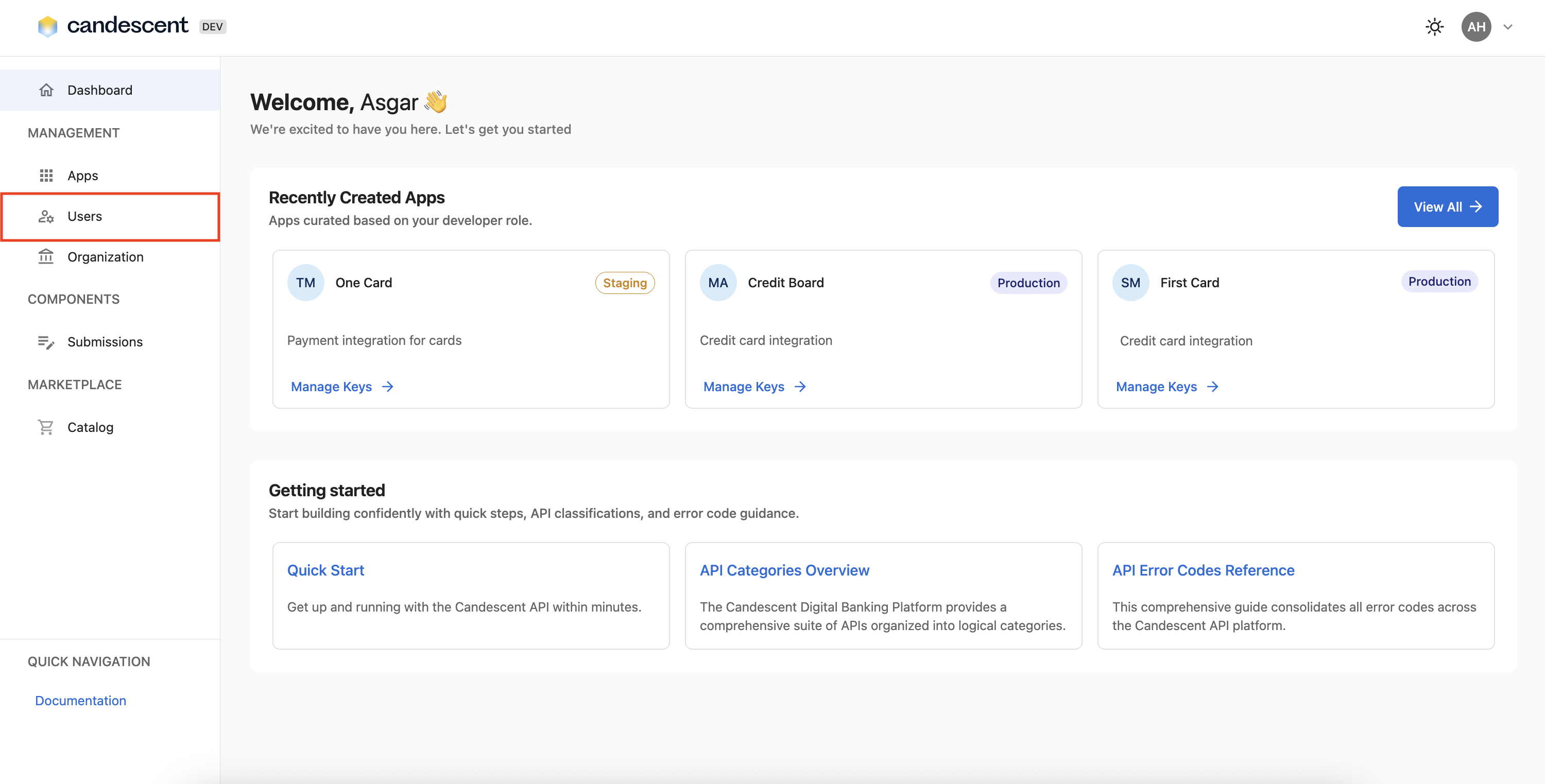
- Click Users in the sidebar navigation menu.
-
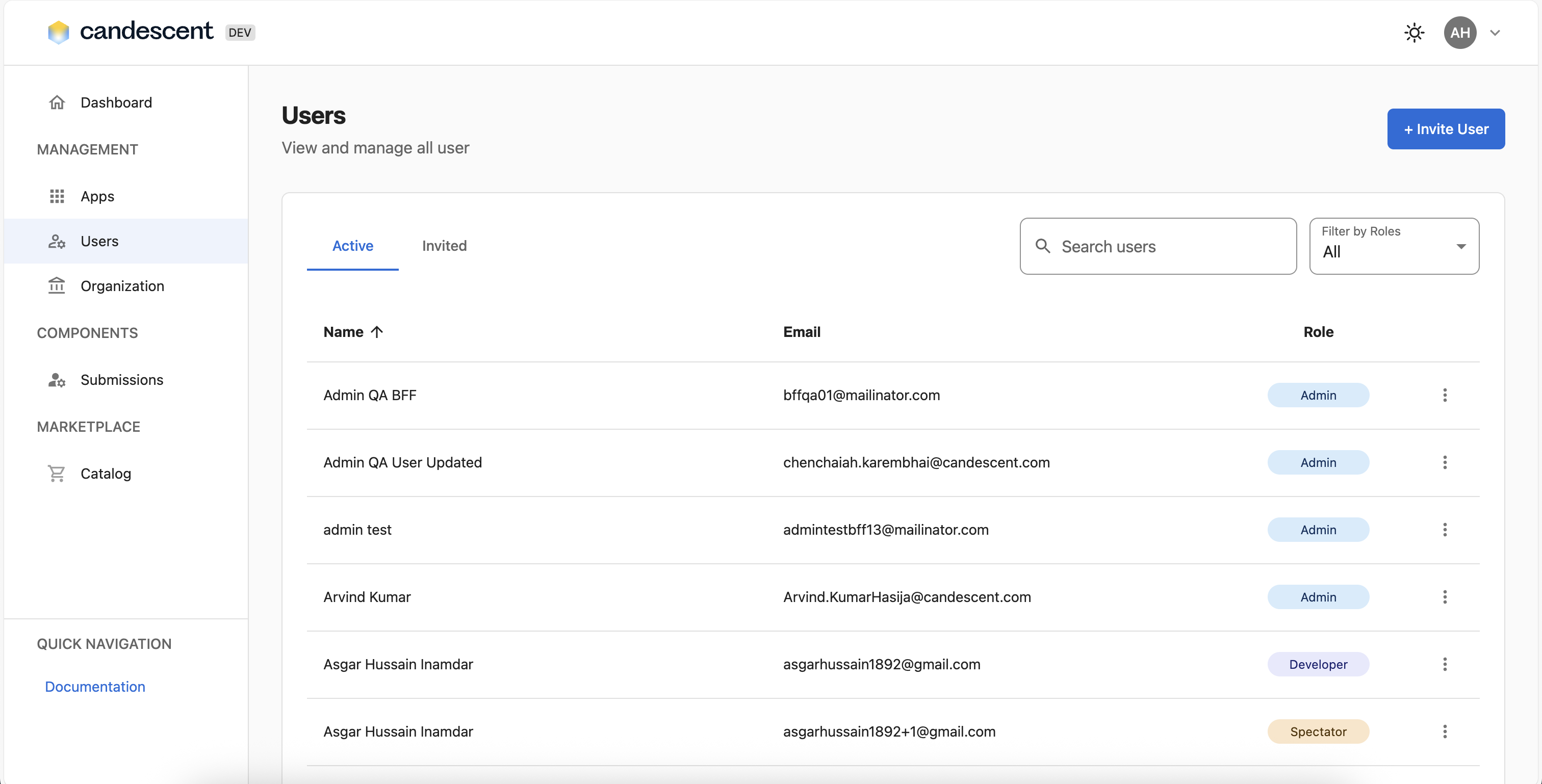
Once clicked, the Users screen is displayed, with 2 tabs Active and Invited.
-
View the details under the Active tab:
- You can view all the users signed up for the Developer Console using this tab.
- View the table of all users in your organization:
- Full Name: Complete name
- Email: Email address
- Role: User role (Admin, User, Manager)
- Actions: Edit and delete options
- View the details under the Invited tab:
- You can view all the invites sent by the Admin.
- View the table of all users in your organization:
- Full Name: Complete name
- Email: Email address
- Role: User role (Admin, User, Manager)
- Invite status: Invite sent or invite expired
- Actions: Edit, resend, and deelete options
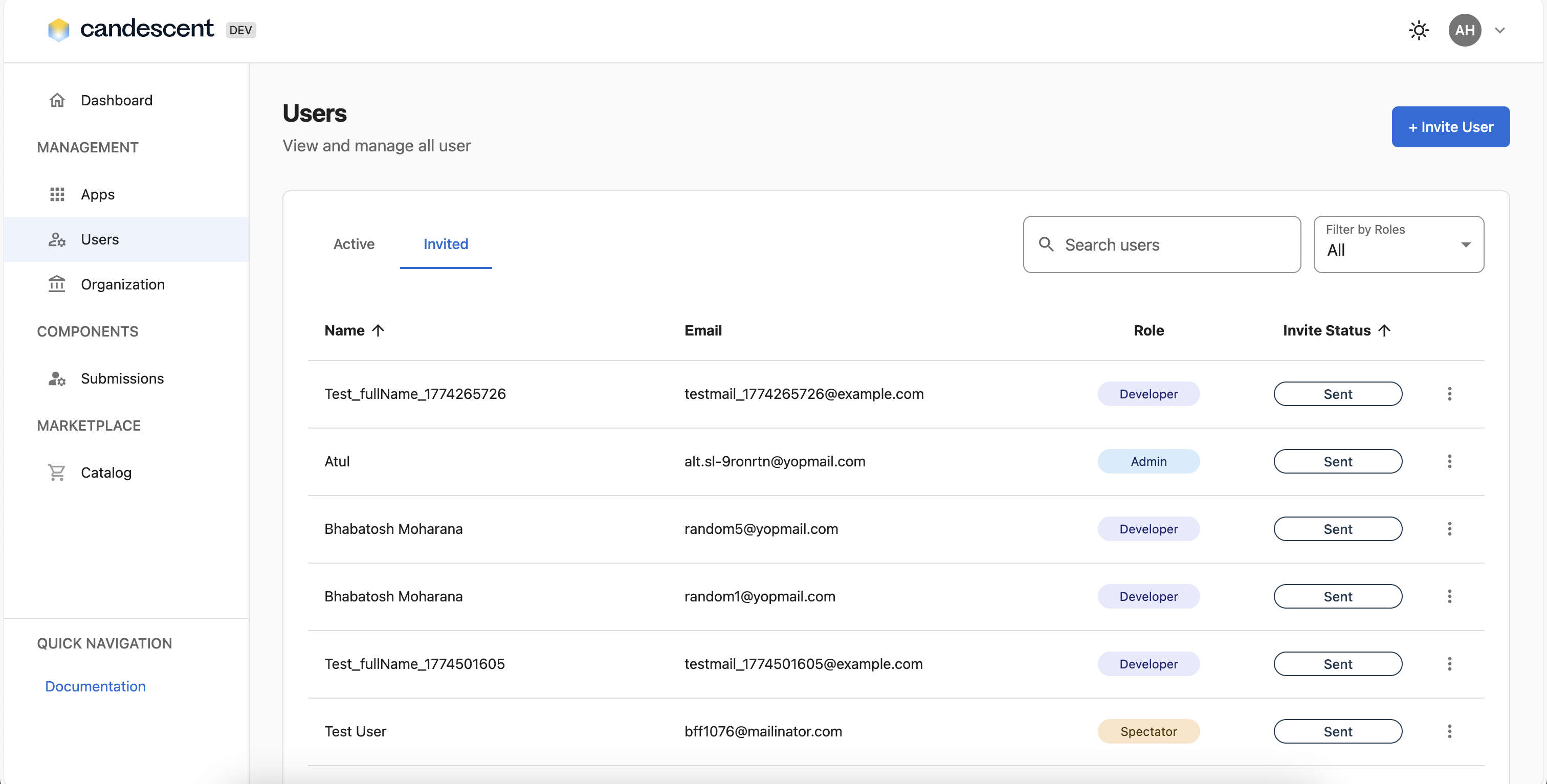
Invitations automatically expire after 3 days if the user has not used the link to complete registration in the Developer Console. The option to resend an invitiation is only available after the existing invitation expires.
1.2 Inviting a New User
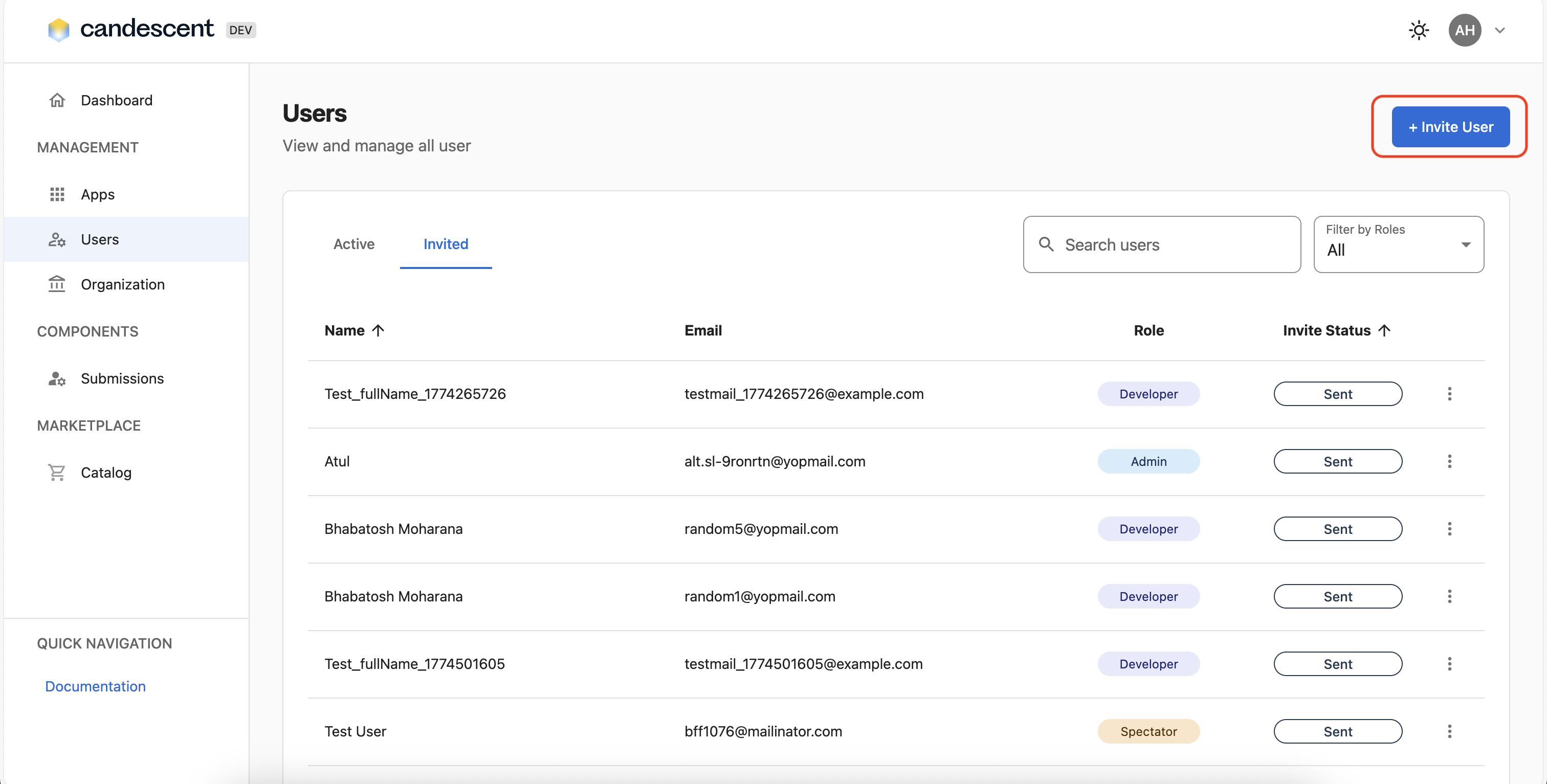
- Click + Invite User at the top of the Users screen.
-
Fill in the required information:
- Full Name: Complete name
- Email: Valid email address
- Role: Select User, Admin, or Manager
-
Click Save.
1.3 Editing a User
-
Find the user in the table.
-
Click the edit icon in the Action column.
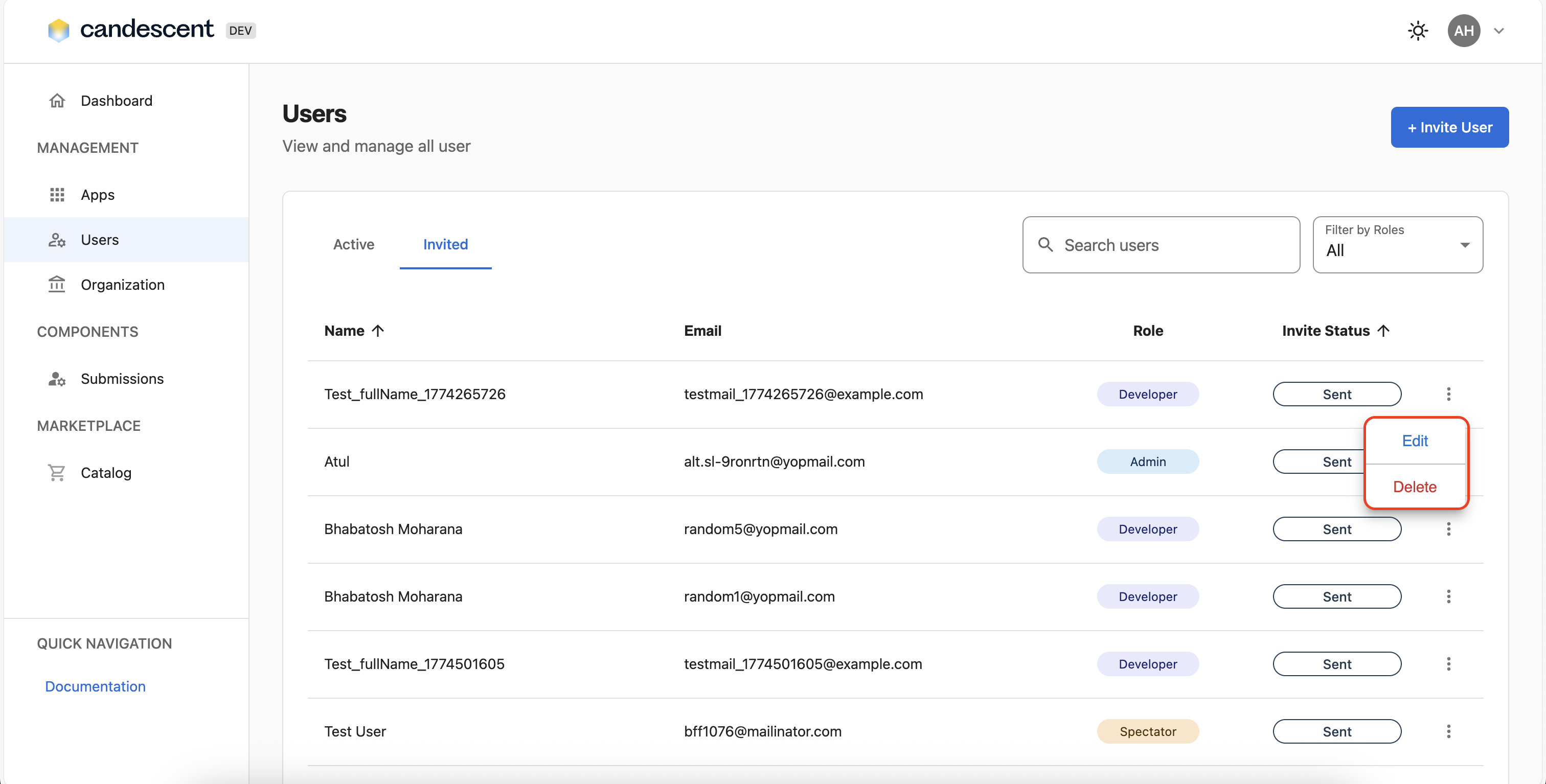
- Modify the fields you want to update.
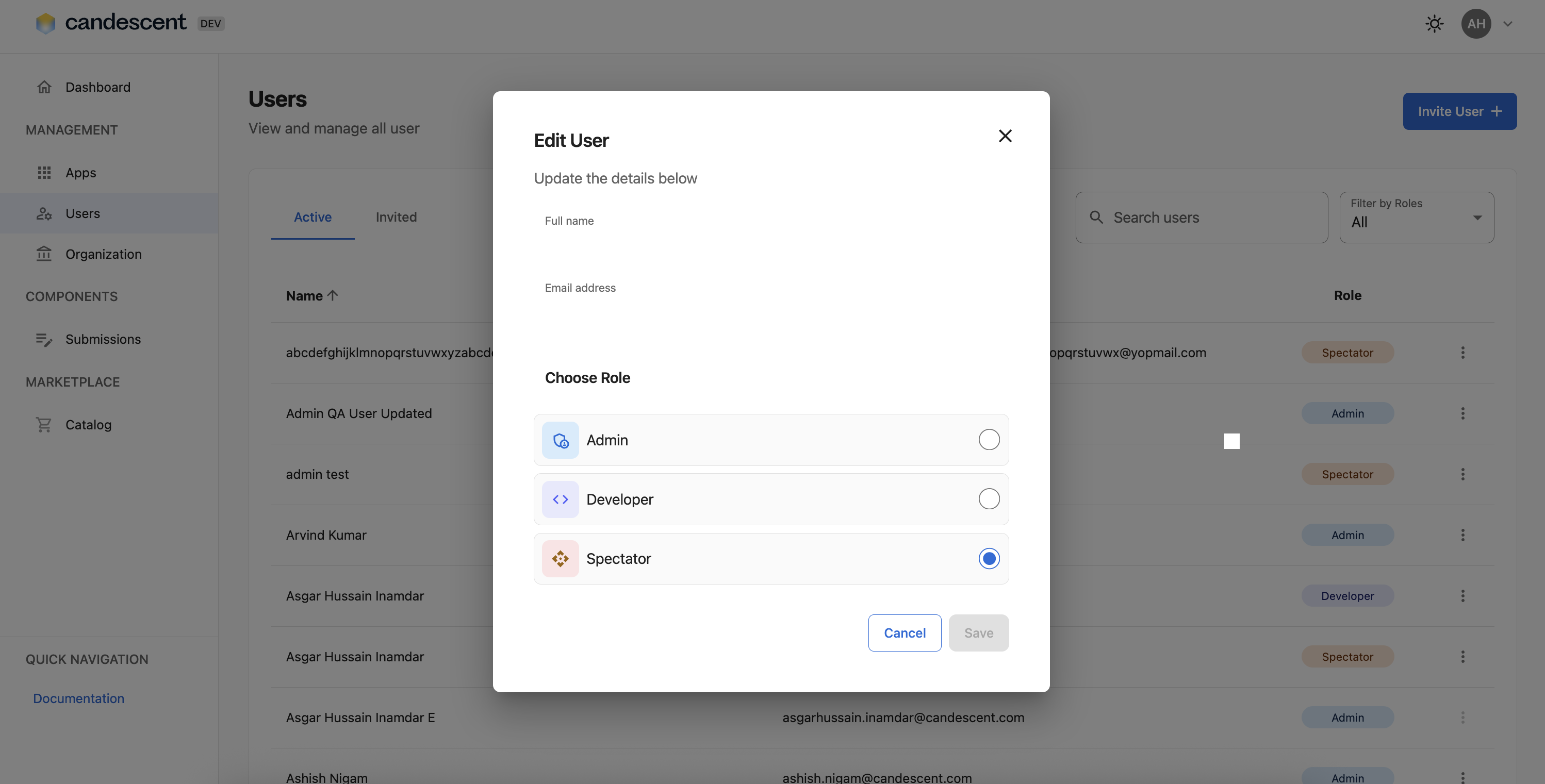
- Click Save.
1.4 Deleting a User
-
Find the user in the table.
-
Click the delete icon in the Action column.
- Confirm the deletion when prompted.

Deleting a user is permanent. Ensure you want to remove the user before confirming.
1.5 User Roles
- Spectator: Standard access with basic permissions.
- Admin: Full access to manage users and applications.
- Developer: Elevated permissions for application management.
2. Organization Information
2.1 Viewing Organization Details
- Click Organization in the sidebar navigation menu.
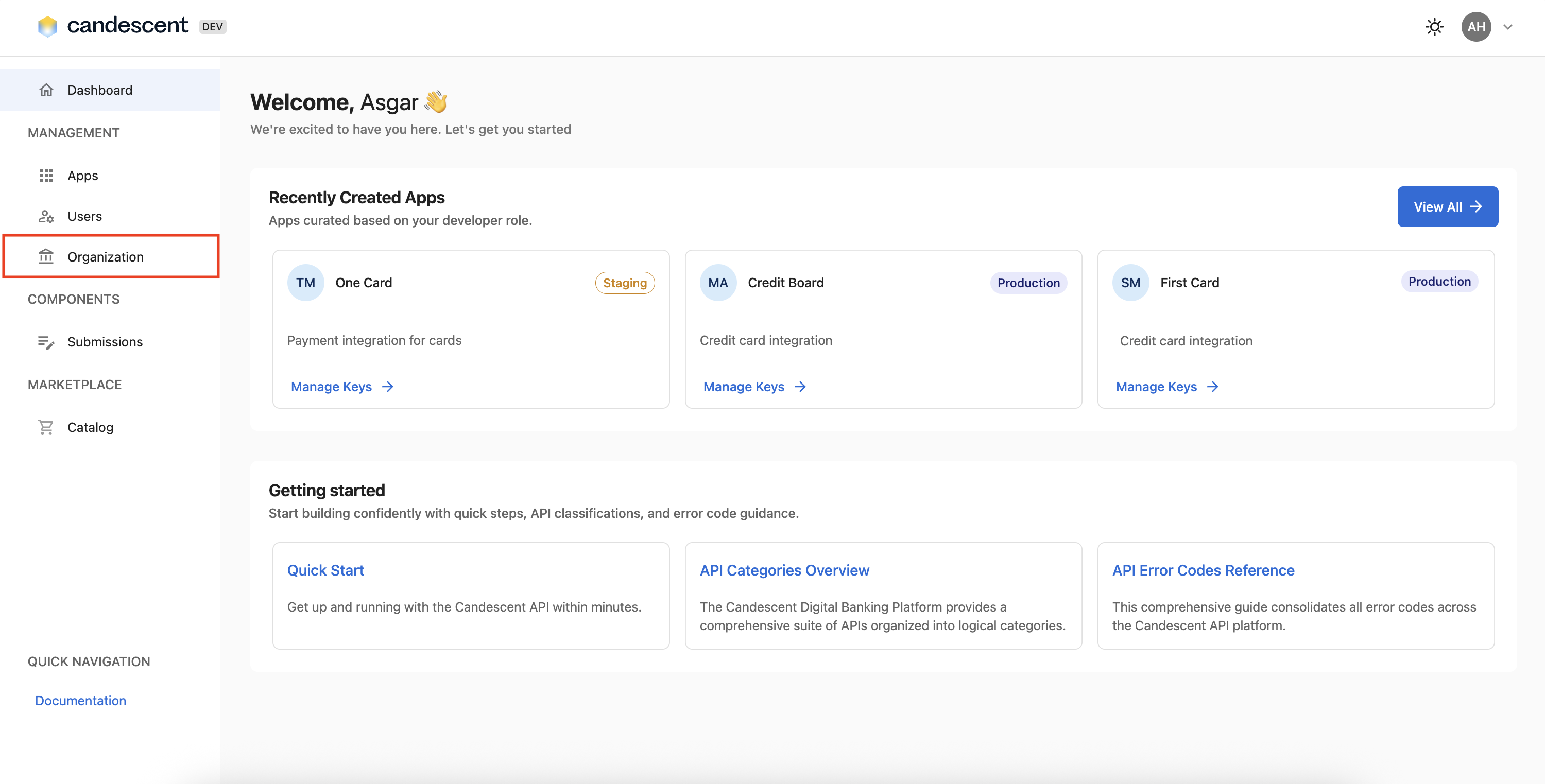
- View your organization's information:
- Organization name
- Contact information (email, phone)
- Website URL
- Organization and Partner ID(s)
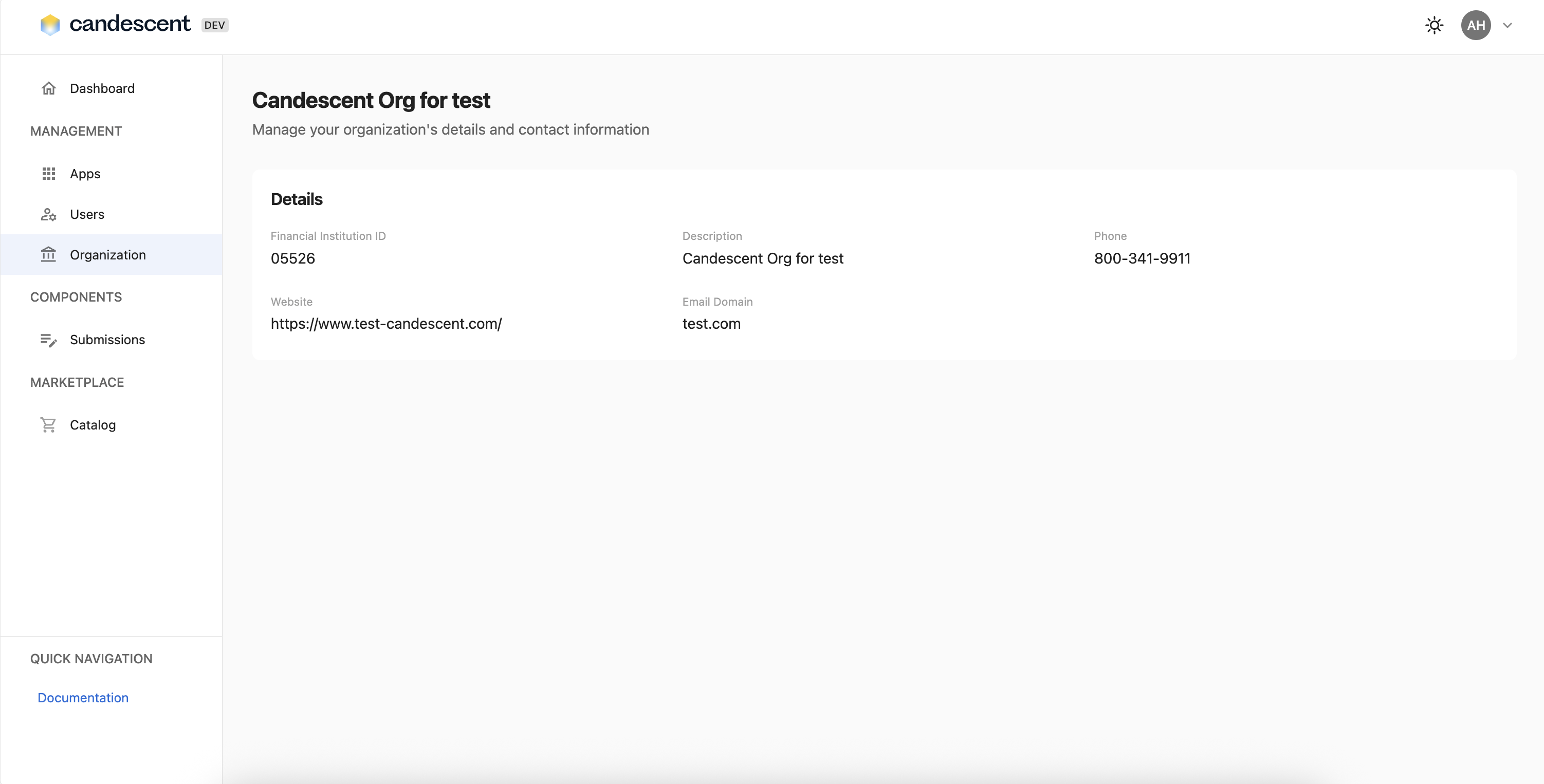
- Organization information is read-only in the console.
- To update organization details, contact your system administrator.
- If organization information is unavailable, a relevant message is displayed.
Next Steps
For information on account settings, common use cases, and best practices, visit Account Settings and Common Use Cases.