Marketplace Product Catalog
1. Overview
The Product Catalog enables you to:
- Browse and search products and vendors available in the Marketplace.
- Filter products by status, provider, and category.
- View detailed product information including:
- Overview
- Features
- Screenshots (if available)
- Benefits
- Similar products
- Request access to products directly from the catalog (based on permissions).
2. How to Access
2.1 Acessing the Marketplace Product Catalog
To open the Marketplace Product Catalog:
- Click Catalog under MARKETPLACE on the left navigation menu.
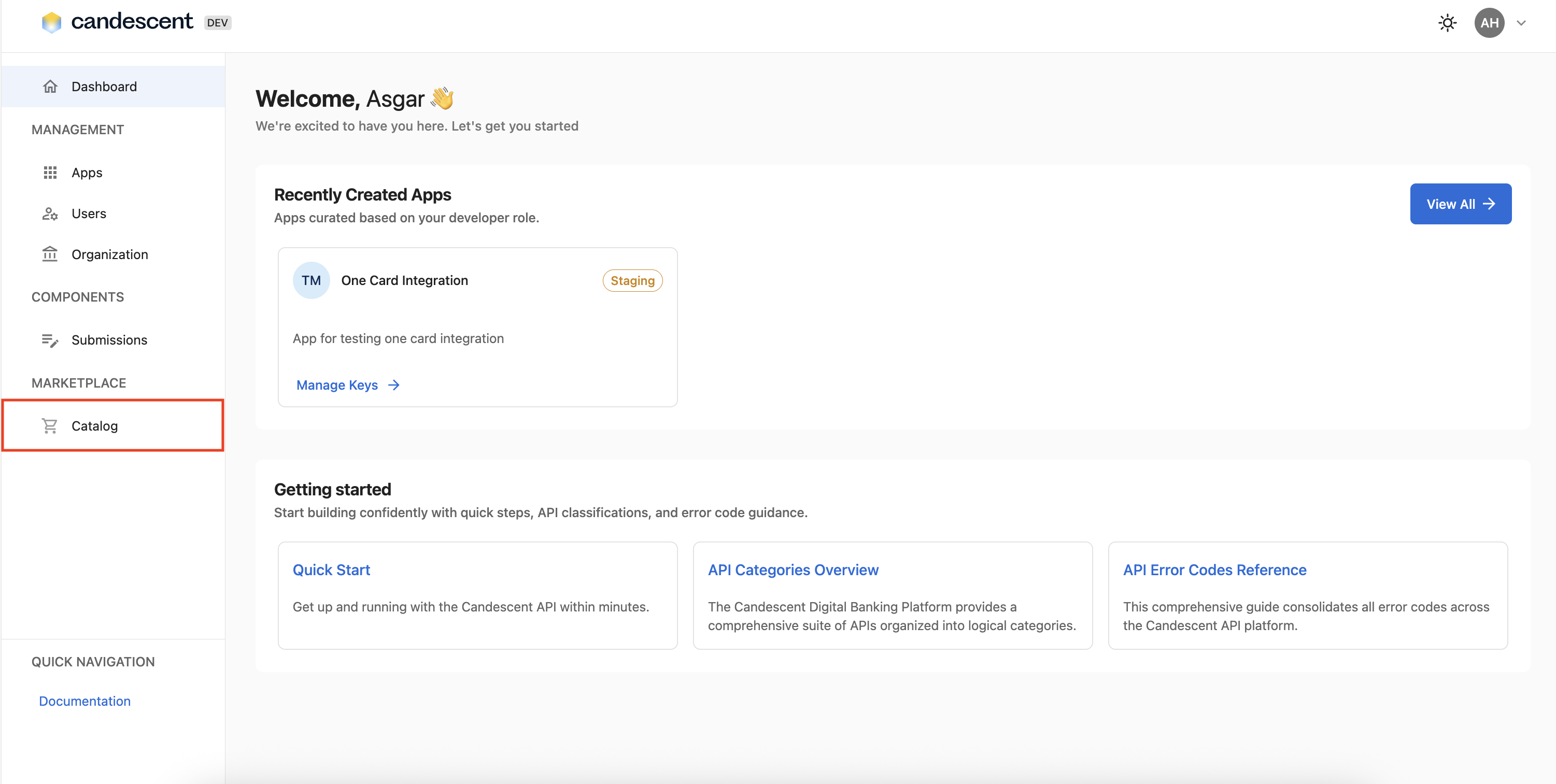
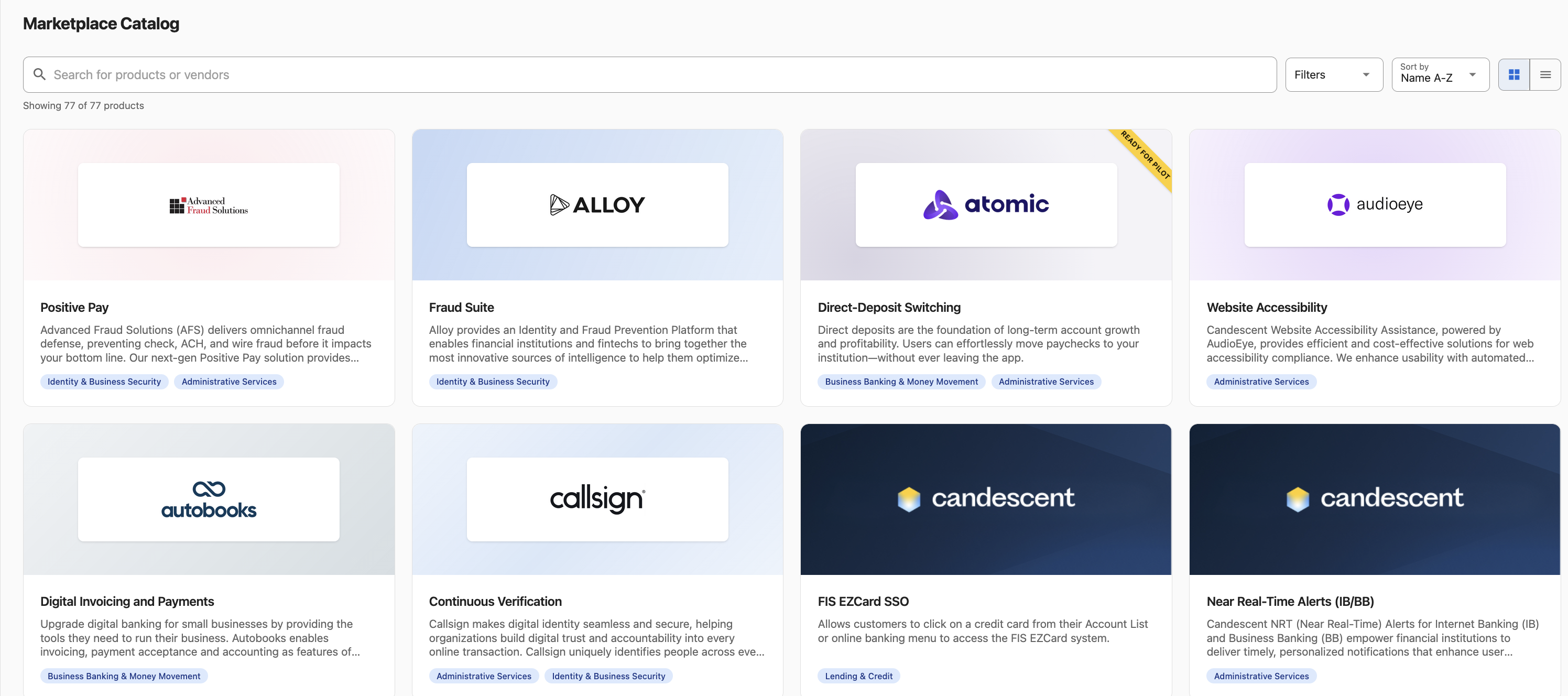
- The Marketplace Product Catalog screen displays the full catalog with filters to discover products and services.
2.2 What the Product Catalog Displays
Product Catalog Header
The catalog header includes:
| UI Element | Description |
|---|---|
| Search bar | Search for products by name or vendor. |
| Product count | Displays "Showing X of Y products" based on applied filters. |
| Filters button | Opens the filter panel. |
| Sort by dropdown | Sort products by different criteria. |
| View toggle | Switch between grid and list views. |
Product Cards
For each product, the following information is displayed:
- Product logo
- Product name
- Vendor name
- Brief description
- Category tags (e.g., "Identity & Business Security", "Administrative Services")
3. Filtering Products
Click the Filters button to open the filter panel. The following filter options are available:
3.1 Categories Filter
Filter products by functional category:
- Administrative Services
- Business Banking & Money Movement
- Engagement & Growth
- Financial Wellbeing
- Identity & Business Security
- Intelligence & Connectivity
- Lending & Credit
Multiple categories can be selected at the same time.
3.2 Status Filter
Filter products by availability status:
| Status | Description |
|---|---|
| All statuses | Displays all products regardless of status. |
| Available | Displays products ready for integration. |
| Coming soon | Displays products available soon in Marketplace. |
| Ready for Pilot | Integrated, validated and ready for FI pilot. |
3.3 Providers Filter
Filter products by who provides them:
| Provider | Description |
|---|---|
| All providers | Displays products from all providers. |
| Partners | Displays Fintech partner products. |
| Candescent | Dispalys products by Candescent. |
3.4 Clear Filters
Click Clear Filters at the top of the filter panel to reset all filter selections to their default state.
4. Sorting Products
Use the Sort by dropdown to organize products:
| Sorting Option | Description |
|---|---|
| Name A-Z | Alphabetical order by Partners (ascending). |
| Name Z-A | Alphabetical order by Partners (descending). |
| Newest | Most recently added products displayed first. |
5. Changing the View
Use the View toggle buttons to switch between display modes:
- Grid View (default) — Displays products as cards in a grid layout.
- List View — Displays products in a condensed list format.
6. Viewing Product Details
To view detailed information about a product:
- Click on any product tile in the catalog.
- The product detail page is displayed.
6.1 Product Detail Page Contents
The product detail page includes:
| Page Element | Description |
|---|---|
| Back to catalog | Link to return to the product catalog (preserves filter selections). |
| Product header | Logo, name, vendor, description, and category tags. |
| Request app button | Request access to the product (for available products only). |
| Request pilot button | Request access for Ready for Pilot products only. |
| Availability banner | Displayed for Coming Soon products: "This product will be available in the marketplace soon." |
| Request for pilot banner | Displayed for Request for Pilot products: “This solution is integrated, validated, and ready for pilot deployment with your institution. |
| Product description | Detailed overview of the product. |
| Benefits | Key business benefits of implementing the product. |
| Key features | Detailed list of product capabilities. |
| Additional information | Supported languages, Terms of Service, Privacy Policy links. |
| Similar products | Related products you may be interested in. |
7. Requesting a Product
To request access to a product:
- Navigate to the product detail page by clicking on a product tile.
- Click the Request App button in the top-right corner.
- A confirmation message is displayed: "Your request has been submitted. Our team will reach out to discuss next steps."
The Request App button is only available for products with the Available status. Coming Soon products will display an availability banner instead.
8. Request Pilot
To request access to a pilot product:
- Navigate to the product detail page by clicking on a product tile that displays the READY FOR PILOT banner.
- Click the Request Pilot button in the top-right corner.
- A confirmation message is displayed: "Your request has been submitted. Our team will reach out to discuss next steps."
Next Steps
Continue to AI Assistant to get guided help for APIs, SDKs, and Developer Console workflows.