Overview
1. Introduction
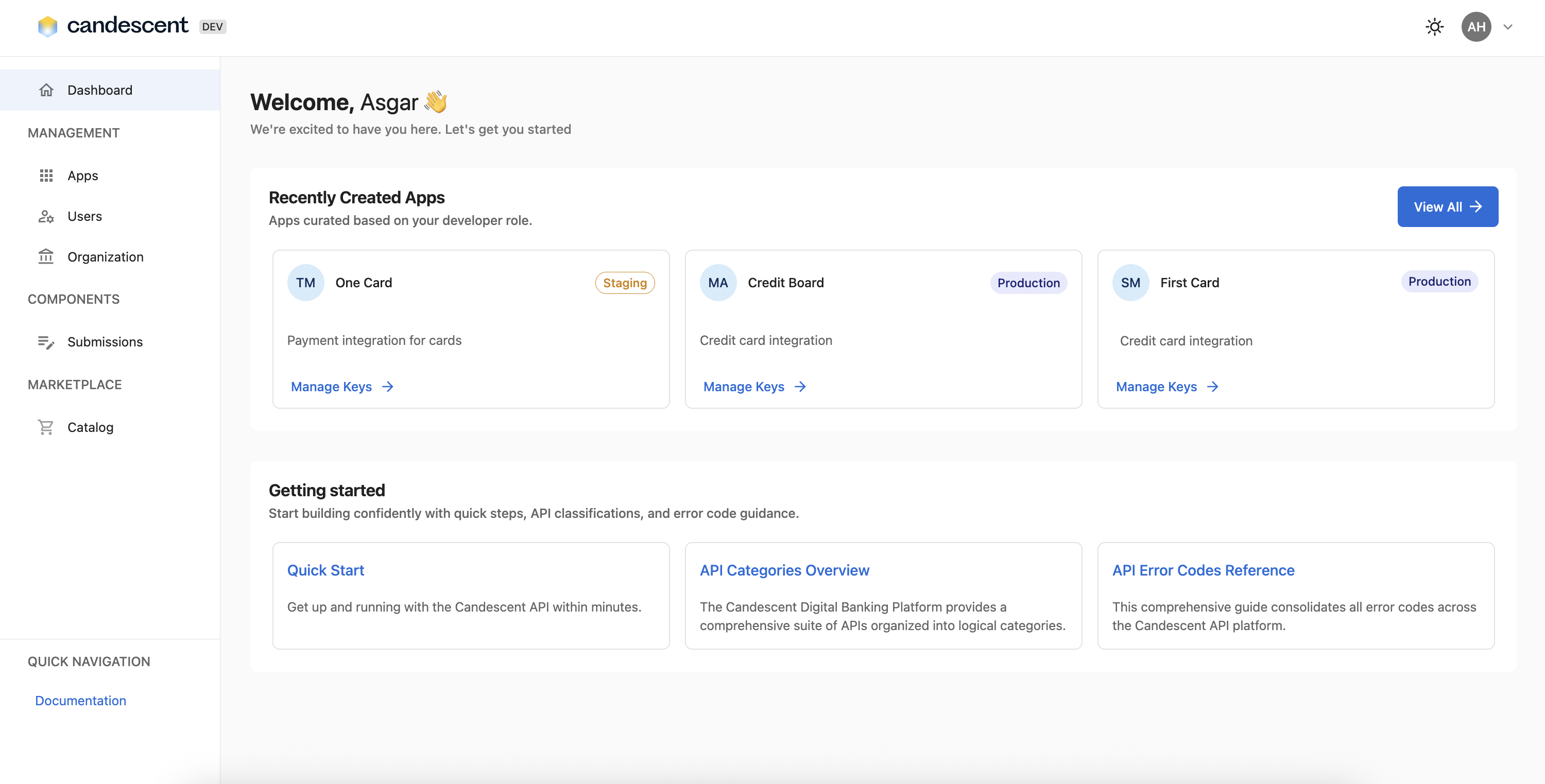
1.1 What is the Developer Console?
The Developer Console is a web-based platform that enables developers and administrators to manage their applications, API credentials, and team members in one centralized location. It provides an intuitive interface for:
- Application Management: Create, view, and organize your applications.
- API Key Management: Generate and manage API credentials securely.
- User Management: Manage user accounts and permissions.
- Organization Overview: Access organization details and settings.
- Marketplace: Browse the Product Catalog to discover and use ready-made apps and integrations.
- Submissions: Submit your code for review and deploy in one workflow.
1.2 Key Benefits
- Centralized Management: All applications and credentials in one place.
- Secure Access: Enterprise-grade authentication and security.
- Easy API Key Generation: Generate new API keys with a single click.
- Team Management: Efficiently manage team members and their access levels.
1.3 Who Should Use This Console?
- Developers: Managing applications and generating API keys for integrations.
- Administrators: Overseeing team members and organization settings.
2. Getting Started
2.1 Accessing the Console
- Navigate to the Developer Console using the Developer Console URL.
- You will be directed to the login screen.
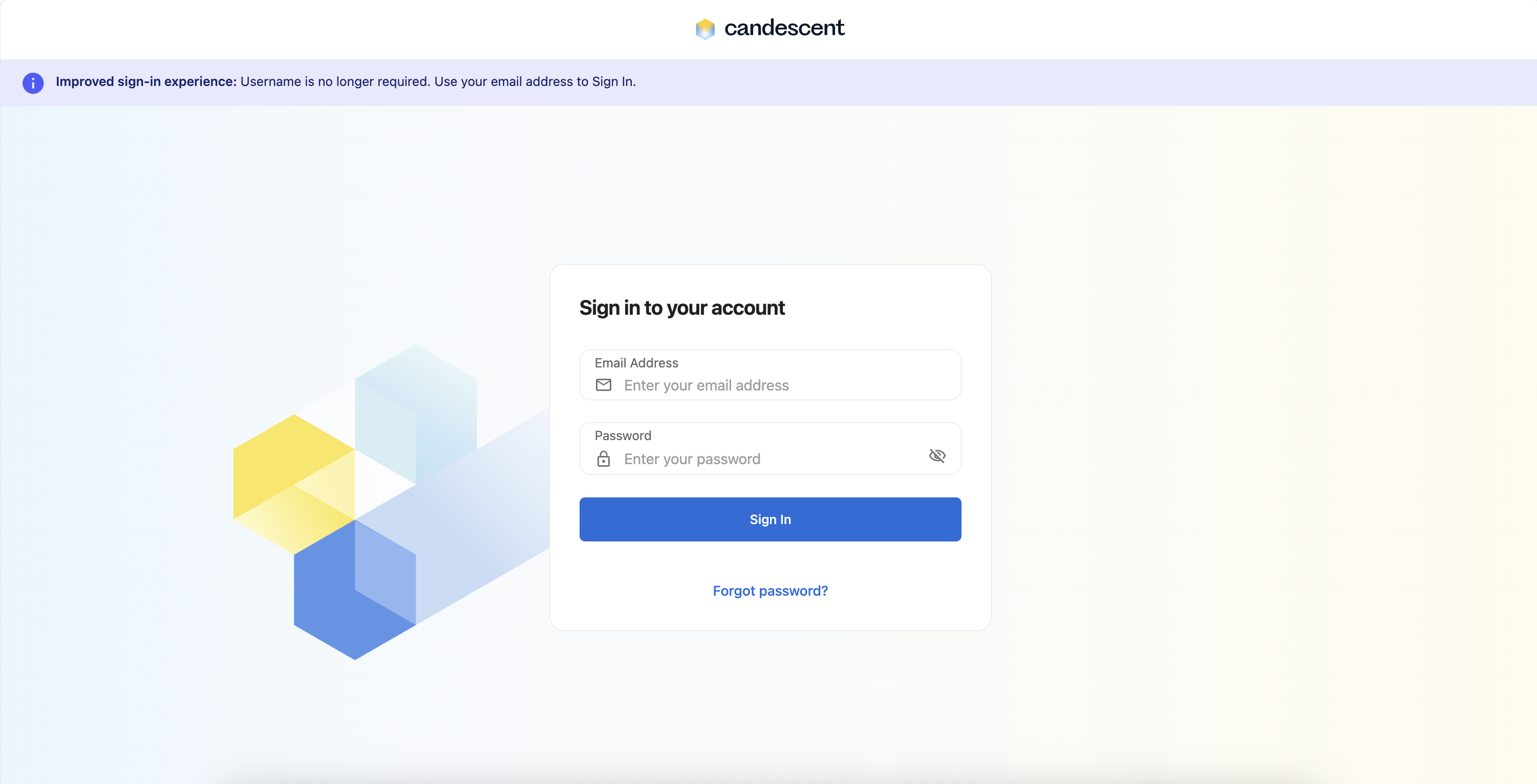
2.2 Logging In
- Enter your Email and Password.
- Click Sign In to authenticate.
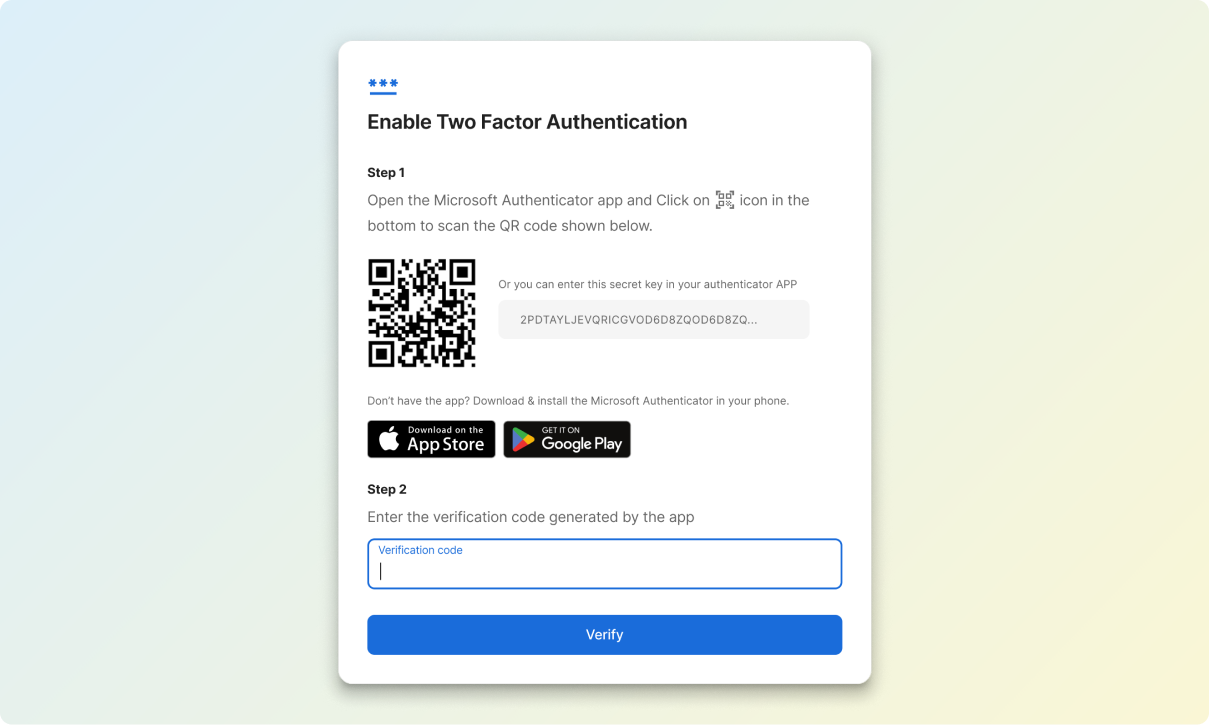
- Using any authenticator app, enter your six-digit authentication code.
Upon successful login, you will be redirected to the main dashboard.
2.3 Navigation
The console features a sidebar navigation on the left with the following sections:
- Dashboard: Overview
- Apps: Manage applications and API keys
- Users: Manage team members (Admin only)
- Organization: View organization details
- Settings: Manage profile and password
- Product Catalog: Discover and use ready-made solutions
- Submissions: Submit code for review and deployment
Click any navigation item to view that section.
3. Dashboard Overview
3.1 What You'll See
The dashboard provides a high-level overview of your console activity:
Recently Created Apps
- Displays your most recently accessed applications.
- Displays app title and description.
- Select any app card to view detailed information.
- Select View All to manage all applications.
Getting Started - Documentation
- View quick start guides to get a jump start on the Developer Console.
3.2 Using the Dashboard
- Quick Access: Click on app cards to navigate directly to application details.
- Navigate: Use the View All button or click the applications card to access the full apps list.
Next Steps
Continue to Account Setup for more information.
Was this page helpful?