Account Settings and Common Use Cases
1. Account Settings
1.1 Accessing Settings
Navigate to Settings in the sidebar to access:
- Profile: View your personal information.
- Password: Change your account password.
1.2 Profile Information
- Navigate to your profile and select View Profile from the dropdown.
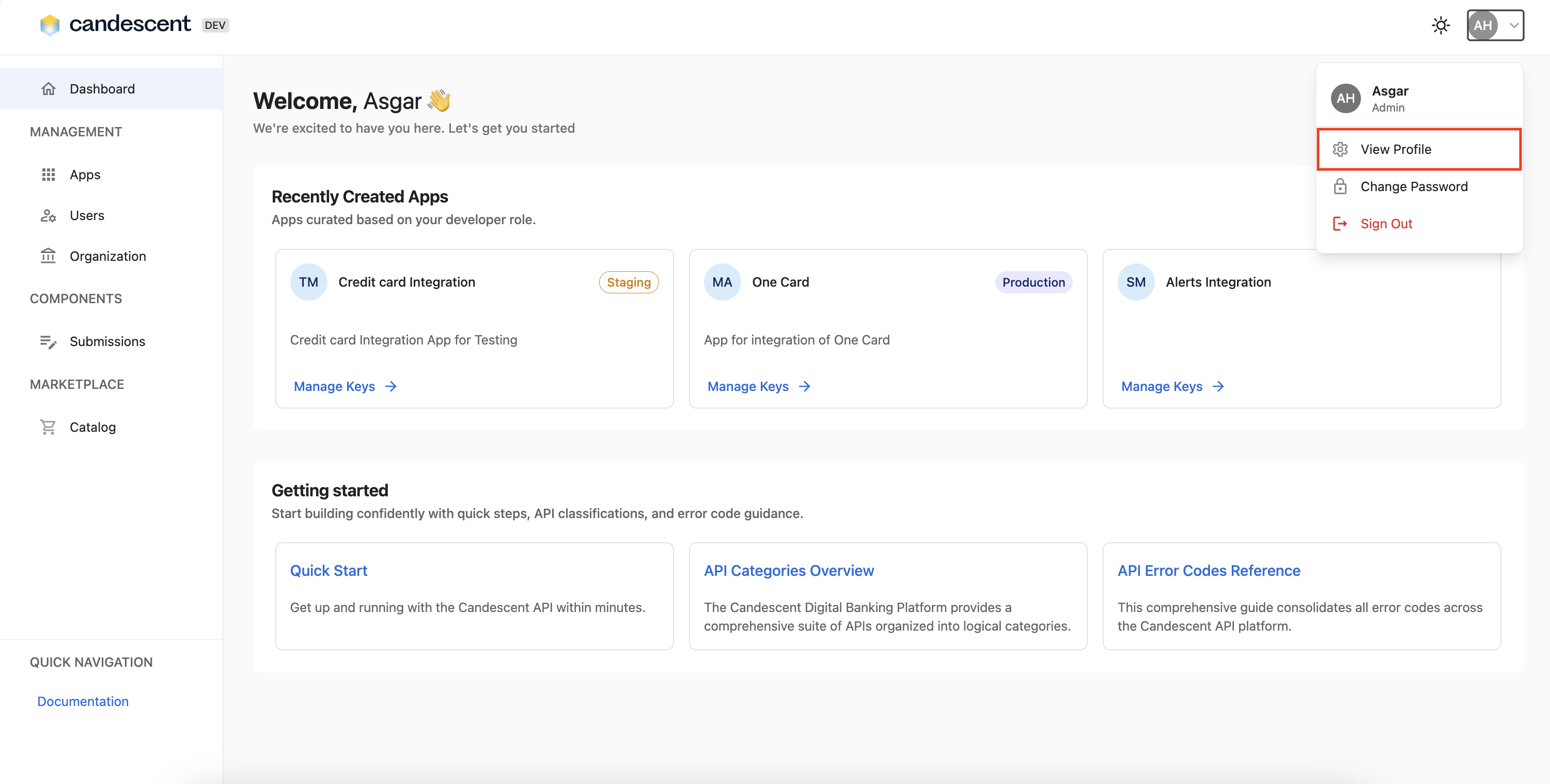
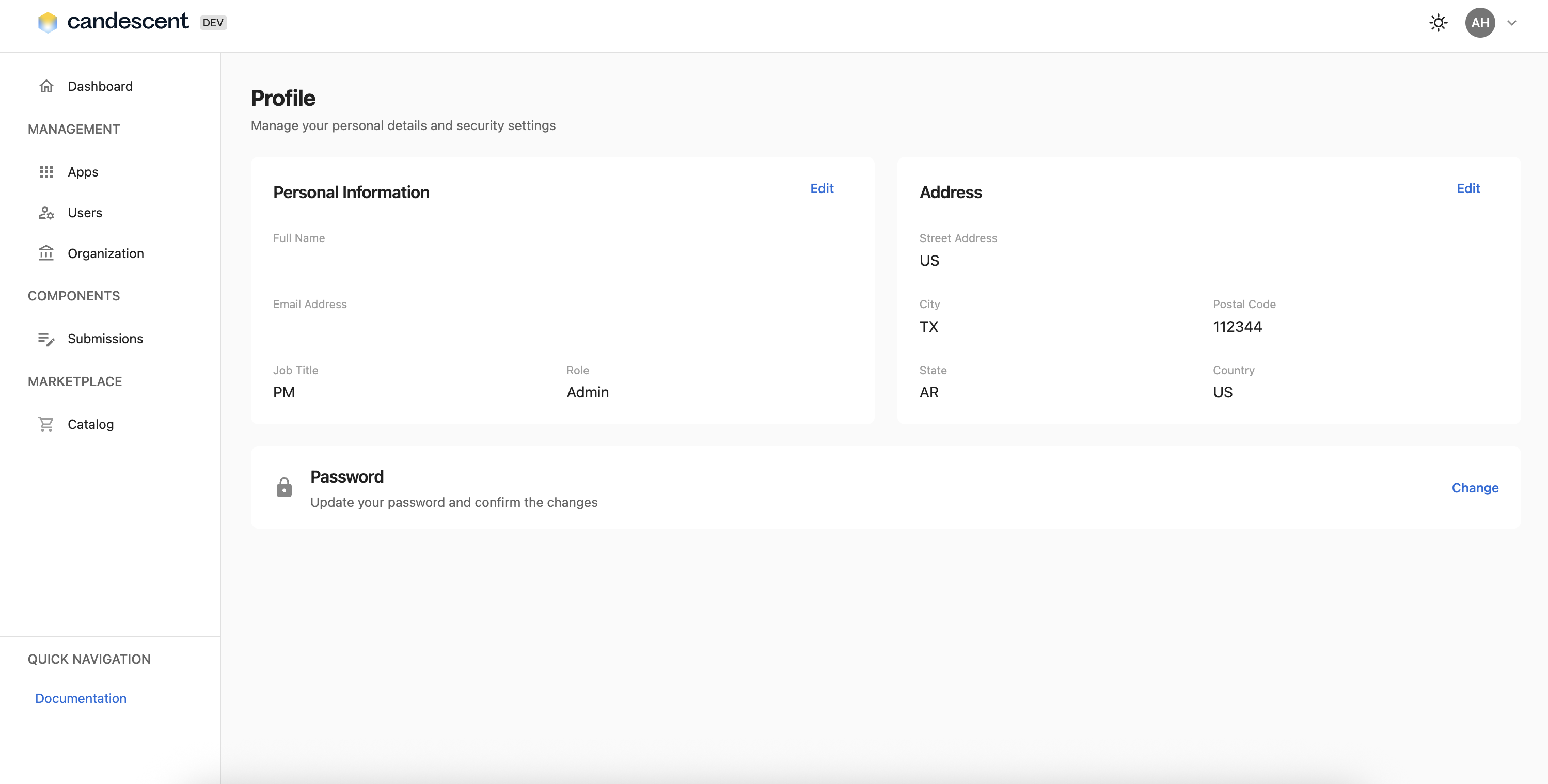
View your profile details including:
- Personal Information: Name, email, job title, role.
- Address: Street address, city, state, ZIP code, country.
1.3 Changing Your Password
To update your password, follow the steps below:
-
Navigate to your profile and select Change Password from the dropdown.
-
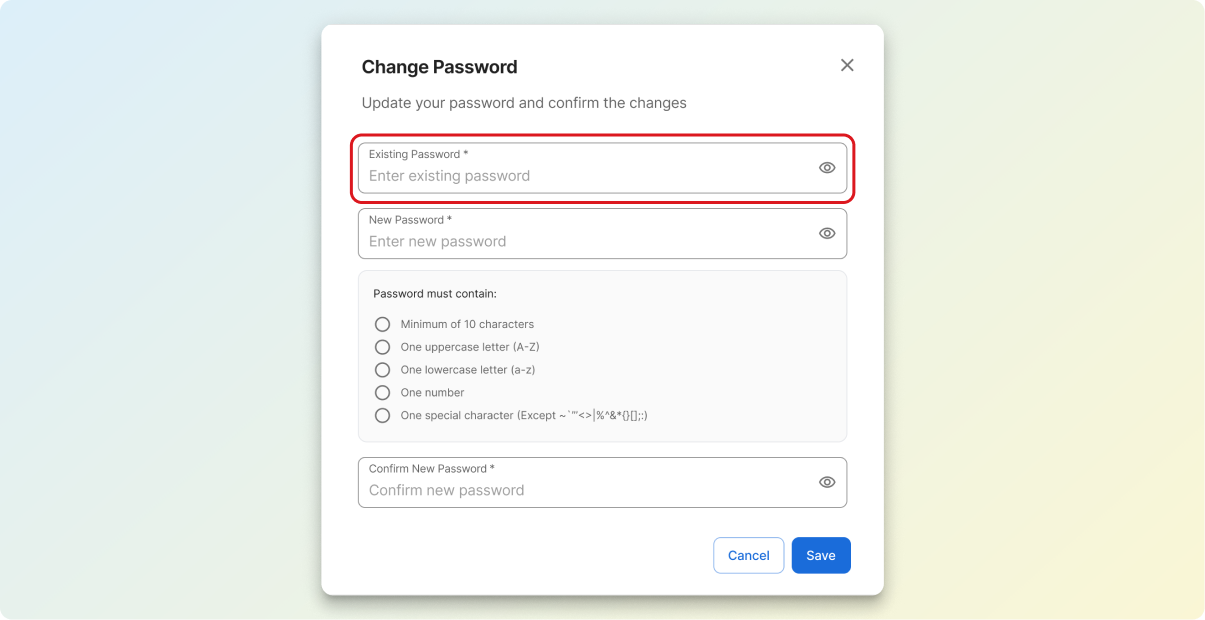
Enter your current password.
-
Enter your new password.
-
Confirm your new password by entering it again.
-
Monitor the Password Strength indicator.
-
Review the Password Security Tips.
-
Click Save to update password.
Password Requirements
When creating a new password, ensure it meets the following criteria:
- Minimum eight characters.
- Mix of uppercase and lowercase letters.
- Include numbers.
- Include special characters.
- New password and confirmation must match.
Password Strength Indicator
Real-time feedback on password strength:
- Weak: Needs improvement.
- Medium: Acceptable but could be stronger.
- Strong: Meets security requirements.
Password Security Tips
- Use a unique password (Password cannot match any of your 3 previous passwords.)
- Include a mix of uppercase, lowercase, numbers, and special characters.
- Avoid including personal information.
- Consider using a password manager.
2. Common Use Cases
2.1 Setting Up a New Application
Scenario: You're developing a new application and need API credentials.
Steps:
- Log in to the Developer Console.
- Navigate to the application screen.
- Click + New App
- Enter the title for your application.
- Select the API environment (e.g. staging, production).
- Enter a Description for your application.
- Click Next.
- Select the API endpoints your app will use.
- Click Connect and Generate Keys.
- The system creates the new app and generates new API keys for it.
2.2 Generating API Keys
Scenario: You're developing a new application and need API credentials.
Steps:
- Log in to the Developer Console.
- Navigate to your application (or create one through your organization's process).
- Navigate to the application details screen.
- Click "Generate New Key" in the API Credentials section.
- Copy and securely store both the Shared Key and Secret Key.
- Integrate these keys into your application for API authentication.
2.2 Rotating API Keys
Scenario: Your organization requires periodic key rotation for security.
Steps:
- Navigate to the application needing key rotation.
- Generate a new API key pair.
- Update your application code with the new keys.
- Test the application thoroughly.
- Once verified, document the old keys as deprecated.
- Monitor the application to ensure everything works as expected.
2.3 Onboarding Team Members
Scenario: A new developer joins your team and needs console access.
Steps:
- Navigate to Users (Admin access required).
- Click + Invite User.
- Fill in the new user's information.
- Assign the appropriate role.
- Click Save.
- User receives an invitation to sign-up for the Developer Console.
2.4 Managing Multiple Environments
Scenario: You need separate API keys for development, staging, and production.
Steps:
- Generate separate API key pairs for each environment.
- Document which key is used for which environment.
- Store keys securely in environment-specific configuration.
- Never mix keys between environments.
- Rotate keys independently per environment, as needed.
3. Best Practices
3.1 Security Best Practices
- API Key Management:
- Never share secret keys publicly or commit them to version control.
- Store keys in secure environment variables or configuration files.
- Use different keys for different environments.
- Rotate keys regularly (recommended every 90 days).
- Revoke compromised keys immediately.
- Password Security:
- Use strong, unique passwords.
- Change passwords regularly.
- Never share passwords.
- Use a password manager.
- Enable two-factor authentication if available.
- Access Management:
- Follow the principle of least privilege.
- Regularly review user access and permissions.
- Remove access for users who no longer require it.
- Update user roles and responsibilities, as needed.
- General Security:
- Log out when finished using the console.
- Don't access the console on public or untrusted networks.
- Report suspicious activity immediately.
- Keep your browser updated.
4. Operational Best Practices
4.1 Documentation
- Document which API keys are used in which applications.
- Keep a record of key generation dates.
- Maintain a list of active users and their roles.
- Document environment-specific configurations.
4.2 Key Organization
- Use clear naming conventions for applications.
- Group keys by environment or project.
- Tag or label keys for easy identification.
- Keep secure backups of critical keys.
4.3 Regular Maintenance
- Review and clean up unused applications.
- Audit user access quarterly.
- Review and rotate keys periodically.
- Update user information as needed.
4.4 Team Collaboration
- Establish clear procedures for key generation.
- Define who can create and manage users.
- Set up notification processes for key changes.
- Maintain shared knowledge base.
Next Steps
For information on end-to-end component submissions, visit Submission.