Web Playground
The Web Playground is a self-contained local environment that runs the online banking shell with mock data, so you can validate extensions without connecting to a live institution. You get three dedicated slots to mount and test your own widgets at runtime.
You can also load Aspects through the Aspect Manager and exercise the theme branding to preview themes against the same shell.
Requirements: Docker Desktop and the playground image from the Candescent team.
Prerequisites
The steps below assume Docker Desktop is installed and running on your machine — it is mandatory for the Web Playground.
| Requirement | Notes |
|---|---|
| Docker Desktop | docs.docker.com/get-docker |
Quick start
Follow these steps in order. The Web Playground docker-compose.yml is in playground/web directory within the cdx-extensibility-apps repository (no separate download).
-
Clone and navigate — Clone the cdx-extensibility-apps repository, then open the
playground/webdirectory. That folder contains thedocker-compose.ymlfile for the Web Playground. -
Pull the image — You can run this from any directory. The image is hosted on the Candescent GitHub Packages registry; the first pull is larger and is then cached.
Bashdocker pull ghcr.io/candescent-dev/olb-playground:1.0.0 -
Start the stack — Stay in the same directory as
docker-compose.ymland run:Bashdocker compose up -
Open the Playground — When the logs show
[playground] Playground ready — open http://localhost:4200, open http://localhost:4200.
| Label | Details |
|---|---|
| Image | ghcr.io/candescent-dev/olb-playground:1.0.0 |
| Registry | github.com/orgs/candescent-dev/packages/container/package/olb-playground |
The image contains:
- nginx serving the banking-platform shell and all internal widget MF remotes
- Express mock BFF (internal, proxied through nginx — no extra port to manage)
- Bundled offline images and mock banking data
Developing your widget
Serve your widget locally
From your cdx-extensibility-apps directory, serve the widget you are developing. For more information, see Widgets overview. Example sample widgets:
| Widget | Port |
|---|---|
agent-widget | http://localhost:4101 |
qa-automation-widget | http://localhost:4102 |
investmentportfolio-widget | http://localhost:4302 |
nx serve agent-widget
# → http://localhost:4101

nx serve qa-automation-widget
# → http://localhost:4102

nx serve investmentportfolio-widget
# → http://localhost:4302
These commands use the Nx CLI. If nx is not installed globally, run npm install -g nx first.
Replacing a widget
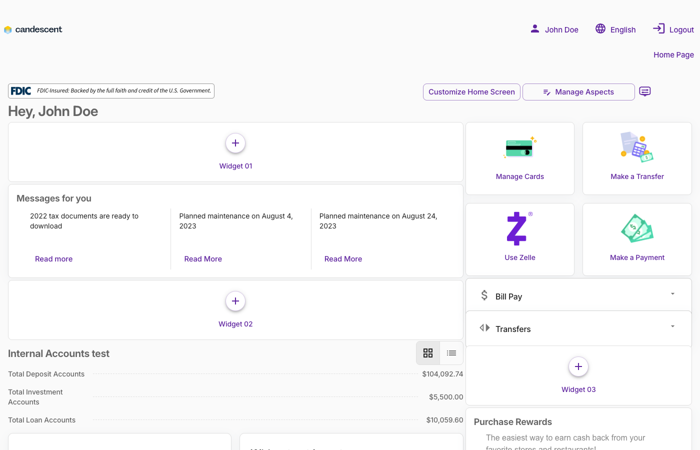
On the home page (http://localhost:4200), you will see placeholder widget slots (Widget 01, Widget 02, Widget 03) with a + icon. Click + on a slot to open the Update widget modal.
Example — replacing Widget 01 with investmentportfolio-widget:
- Click + on Widget 01.
- Fill in the three fields using your widget’s
module-federation.config.ts— for this example (investmentportfolio-widget), that file issamples/web/widgets/investmentportfolio-widget/module-federation.config.tsin cdx-extensibility-apps:- Url —
http://localhost:4302 - Widget name —
investmentportfolio-widget - Entry —
InvestmentportfolioWidget
- Url —
- Click Save.
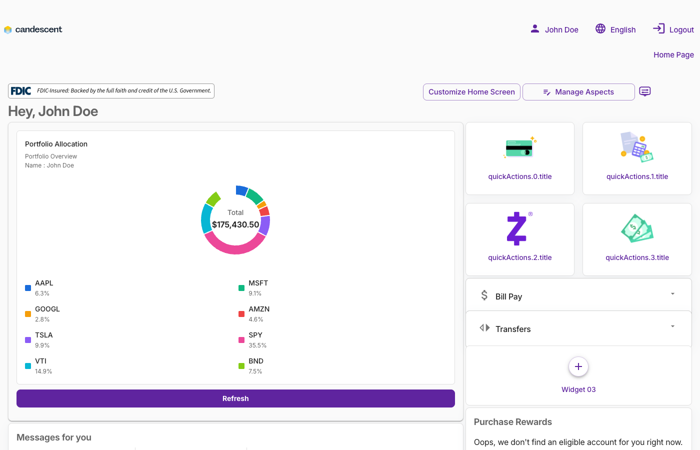
- The page reloads — your widget appears in the Widget 01 slot.
Widget slot setup (screenshots)
-
Home page — empty slots — Widget 01, Widget 02, and Widget 03 show + placeholders where you attach a remote widget.
-
Update widget modal — Enter Url, Widget name, and Entry to match your
module-federation.config.ts(remote URL, remote name, exposed module).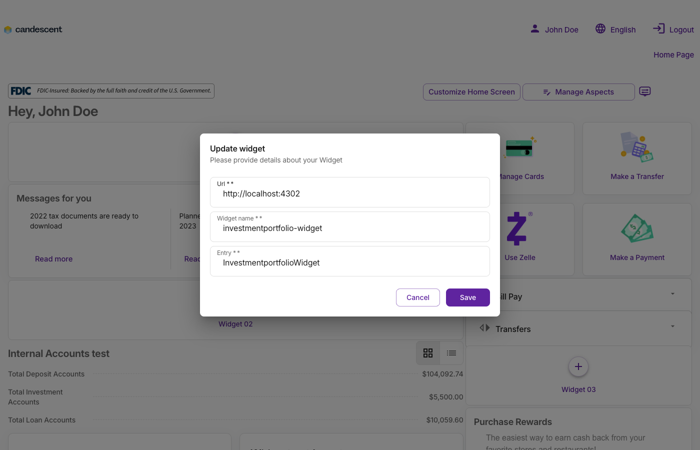
-
Slot after save — The page reloads and your widget renders in the chosen slot.
Aspects
Aspects are JavaScript snippets executed by the shell at page load — for chatbots, analytics tags, or custom UI injections.
Aspect Manager
A Manage Aspects button appears on the home page (playground image only). Use it to open the Aspect Manager:
- My Submissions — view, edit, or delete loaded Aspects
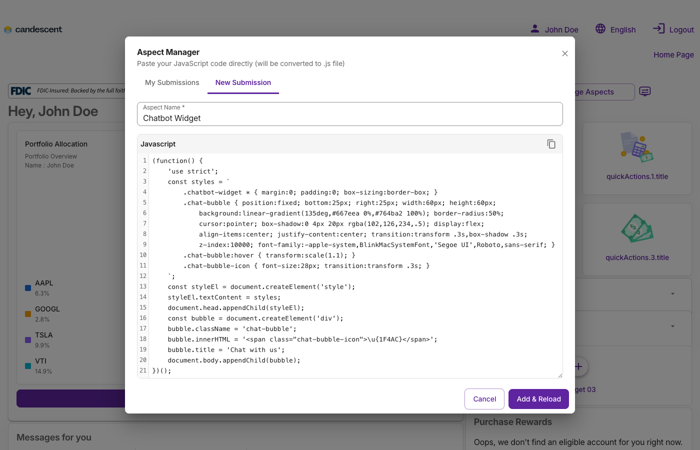
- New Submission — paste a name and JavaScript snippet, then Add & Reload
The chatbot-style flow shown below follows the reference implementation in samples/web/aspects/contextless_chat_bubble.js in the cdx-extensibility-apps repository. Copy the script into New Submission in the Aspect Manager, then Add & Reload to view newly added Aspect.
Aspect Manager — add or manage Aspects (example flow):
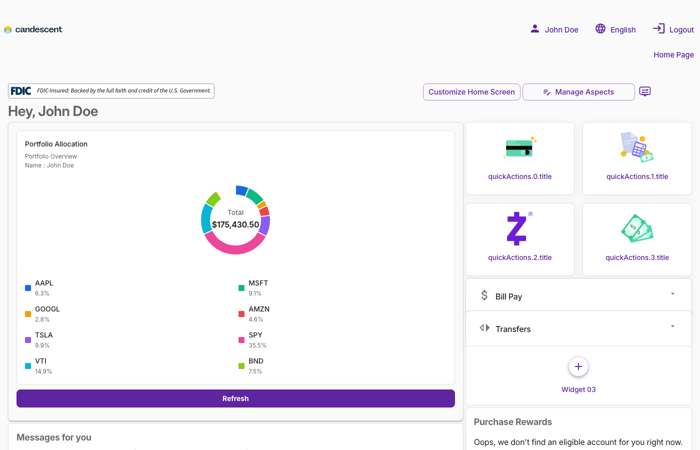
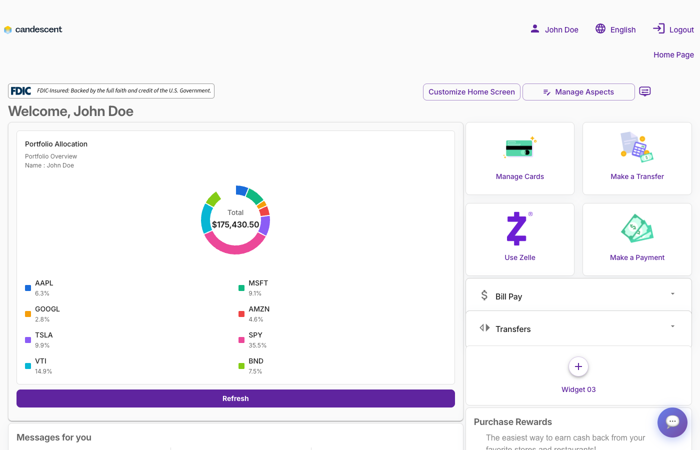
Chatbot UI injected by the sample Aspect (bubble and panel). In the image below, it appears in the bottom-right corner.
Theme Branding
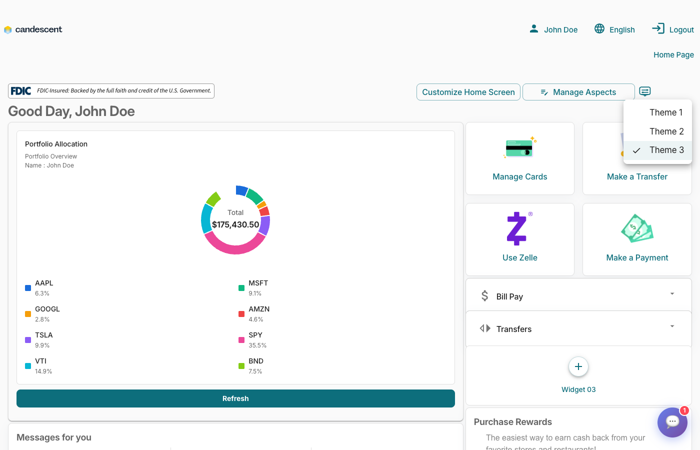
The playground includes a runtime branding switcher with three pre-configured themes: Theme 1, Theme 2, and Theme 3. Click the palette icon in the top-right toolbar (next to Manage Aspects) to open the picker and choose one.
Select a theme and the page reloads with the new branding. A checkmark indicates the active theme. Switching only replaces the visual theme — widget replacements and Aspect configurations are preserved.
Branding switcher (palette) in the toolbar:
Mock session data
In the Web Playground, window.dbk.sessionInfo() (from the browser console) returns mock session data your widget can use during development.
| Property | Value |
|---|---|
userFullName | John Doe |
diId | 00516 |
loginId | johndoe |
The greeting widget also calls /ui/v1/users, which returns firstName: 'John' and lastName: 'Doe'.
Port and widget reference
| Port | Service |
|---|---|
| 4200 | banking-platform — shell (open in browser) |
| 3001 | Mock BFF — Express mock backend (proxied through 4200) |
| 4201 | greeting-widget — com.ncr.dbk.olb.widgets.greeting |
| 4202 | messages-widget — com.ncr.dbk.olb.widgets.message |
| 4205 | purchase-rewards-widget — com.ncr.dbk.olb.widgets.purchase-rewards |
| 4209 | quick-actions-widget — com.ncr.dbk.olb.widgets.quick-actions |
| 4210 | billpay-widget — com.ncr.dbk.olb.widgets.bill-pay |
| 4216 | transfers-widget — com.ncr.dbk.olb.widgets.transfers |
| 4219 | widget-stack — com.ncr.dbk.olb.widgets.widget-stack |
| 4220 | widget1 — com.ncr.dbk.olb.widgets.widget1 |
| 4223 | fdic-widget — com.ncr.dbk.olb.widgets.fdic |
| 4226 | my-accounts-widget — com.ncr.dbk.olb.widgets.my-accounts |
| 4101 | Your agent-widget (served from host) |
| 4102 | Your qa-automation-widget (served from host) |
| 4302 | Your investmentportfolio-widget (served from host) |
widget2 and widget3 are also registered (same remote URL as widget1).
Troubleshooting
OLB loads but shows blank / no widgets
The container needs a few seconds to fully initialise. Wait for OLB Playground is running! in the logs, then refresh. Also check:
docker compose ps # should be running
My widget doesn't appear after mounting
- Confirm your widget is serving (check the terminal where you ran
nx serve). - Confirm the name and entry fields match your
module-federation.config.tsexactly. - Refresh http://localhost:4200 after clicking Submit.
- Check the browser console for errors.
Restart:
docker compose down && docker compose up
Port already in use
Open Docker Desktop → check for other running containers using port 4200, or stop the conflicting process before starting the playground.